
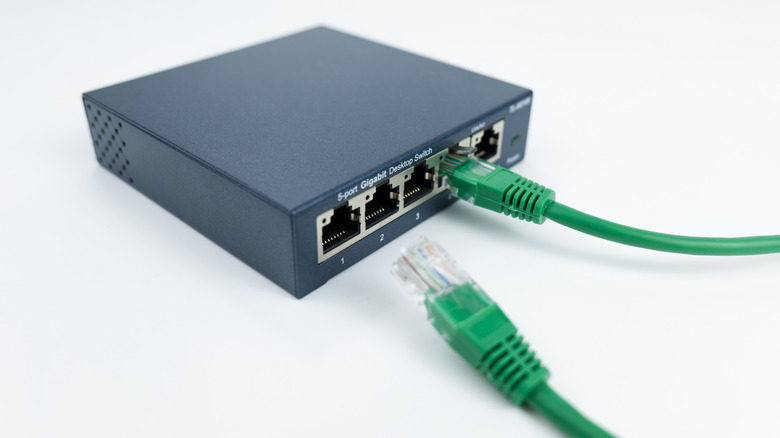
You don’t need a new router to get more Ethernet ports; the solution is much simpler.
With more and more devices offering internet connectivity, running out of Ethernet ports on your router is a common frustration. A few ports aren’t enough to connect your smart TV, game consoles, desktop computers, NAS drives, home office equipment and more. If you’re maxed out, you might assume you need a new router, but that’s not the case.
The real solution is simpler, more affordable and takes only minutes to set up: an Ethernet switch. This (often compact) plug-and-play device connects to one of your router’s LAN ports and immediately expands your wired network capacity. Depending on the model, a single switch can add four, seven, 15 or even more ports to your setup — all without replacing your router or reconfiguring your network.
This matters because while Wi-Fi has improved significantly over the years, a wired Ethernet connection still delivers a better, more consistent performance for activities like online gaming, 4K streaming and large file transfers. Let’s go over how Ethernet switches work and how they differ from routers, which port to use and what alternatives exist if running new cables isn’t an option.
An easy fix to your home’s network issues
Most home routers come with four LAN ports and one WAN port. The WAN port is for connecting to your modem (if you don’t have a combo unit), which leaves four for your use. Even if this was enough when you bought your router, needs can change. For instance, maybe smart TV starts buffering when you upgrade to a 4K streaming plan, so you don’t want it to use Wi-Fi anymore.
If all ports are already in use, an Ethernet switch (not a splitter) will add more connections to your existing router. Then you can enjoy the full internet speed you’re paying for on more of your devices, while also enabling more direct connections between devices. The switch acts as an expansion to provide more LAN ports, much like an HDMI switch or USB hub. They’re most commonly sold with five, eight or 16 ports, but the usable number is one fewer since one slot connects the switch to your router.
For most people, an unmanaged switch is the way to go as they require zero setup and come at a lower cost. Managed switches have advanced features like monitoring and virtual networks, which aren’t necessary when all you want is more ports.
How a network switch works
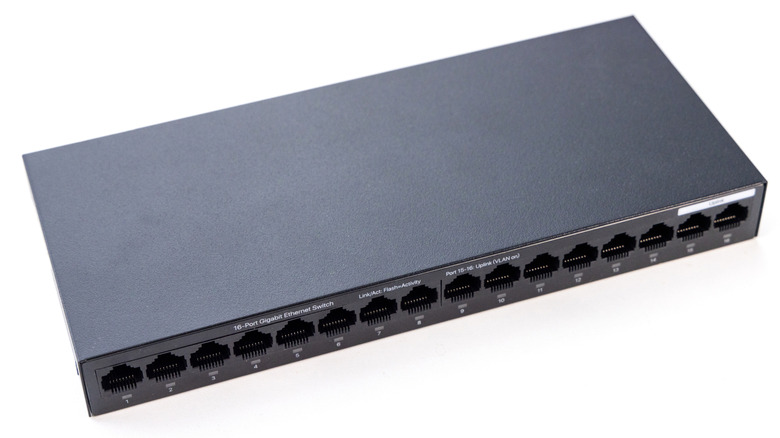
A router’s job is to direct traffic between devices on your home network and the internet. When data comes in from the outside, your router sends it to your phone, laptop or other device as needed. A basic switch doesn’t do this; it simply provides more Ethernet ports for the router and makes sure data sent from devices connected to it goes to the right place. A switch doesn’t replace your router or affect Wi-Fi performance.
If running new cables through your walls isn’t realistic, there are a few alternatives to get a wired-style connection without the mess. You could use MoCA adapters to send broadband over your home’s coaxial wiring, or powerline adapters that do the same using your electrical outlets. Alternatively, surface-mounted fiber optic kits allow you to run super thin cables along baseboards for a high-speed performance without signal degradation. However, this is more expensive and requires careful installation to avoid damaging the cables.
How to know which Ethernet port to use
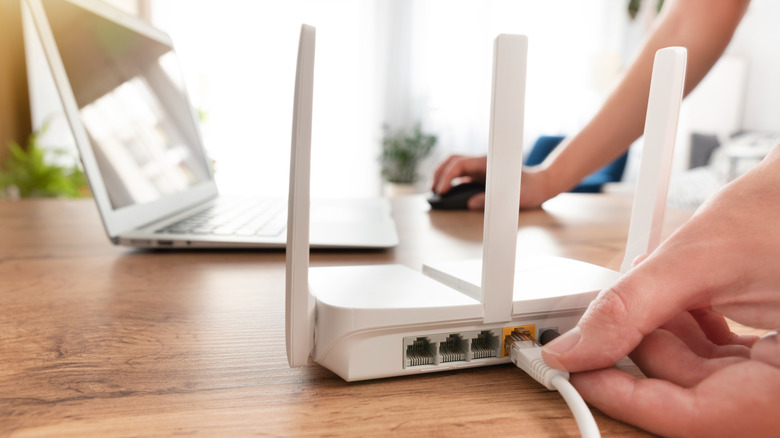
Not every port on your router serves the same purpose. Aside from the WAN and LAN distinction mentioned earlier, you also need to check the speeds that each port supports. Ethernet performance is affected by the standard of the ports on both your router and device, as well as the cable itself.
If your computer and router both have a 2.5 gigabit Ethernet port and are connected by a cable that supports 2.5 Gbps, adding a switch that only supports 1 gigabit speeds will bottleneck performance for devices connected to it. Most unmanaged switches today offer at least gigabit speeds, so unless you have extremely fast internet, this shouldn’t be a huge concern. If your router’s ports don’t have any indication of their standards (like 1G or 2.5G), check the manual or online documentation.
Generally, plugging your Ethernet switch into the router’s highest-speed port that it can take advantage of is wise. Keep in mind that your connection speed to the internet and back will be capped by your ISP plan, though this doesn’t affect direct connections on your network (like your PC communicating with a NAS).
Comments are closed, but trackbacks and pingbacks are open.